 Omar Fouda
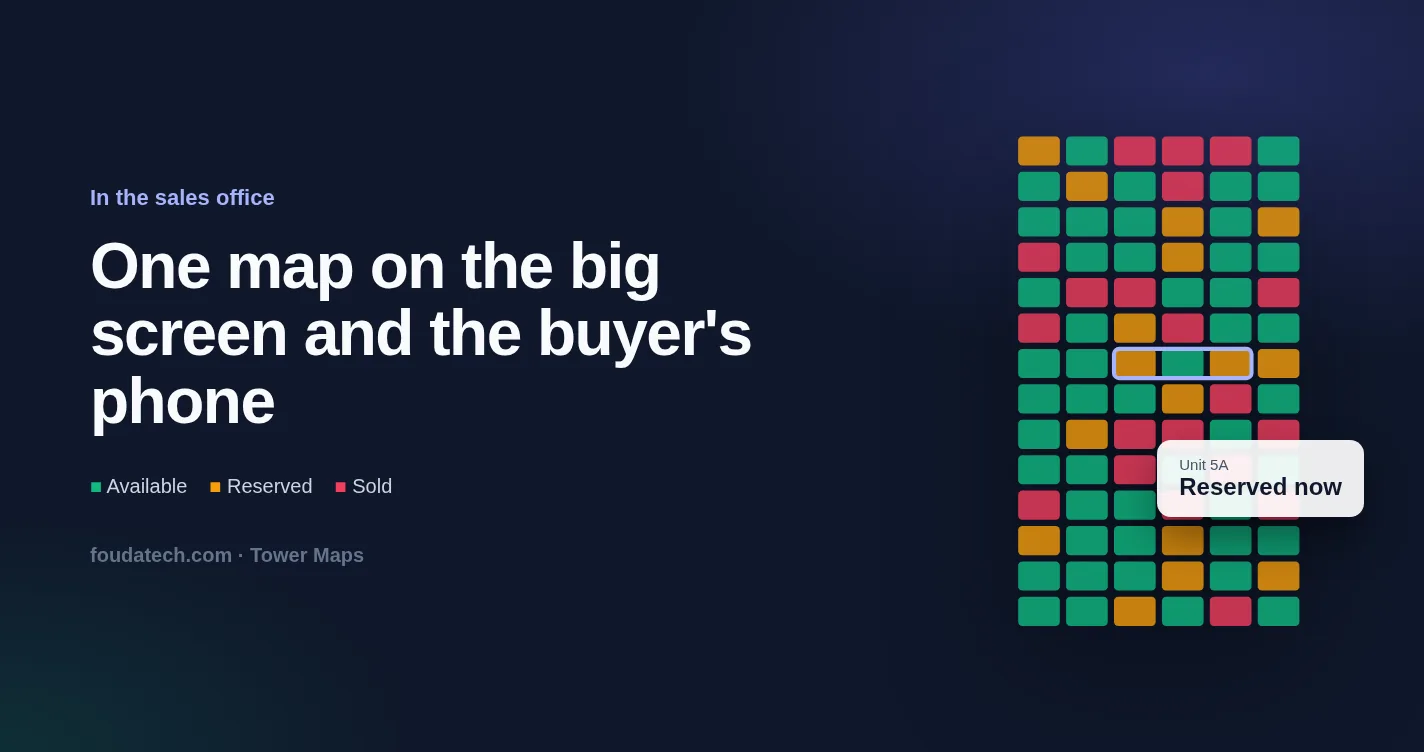
Table of Contents
- One map, three places
- Why the sales office needs it as much as the website
- What hardware you need
- Walking a buyer through the building
- Marking a unit Reserved on the spot
- Sending the buyer home with the same link
- Using it at a property expo
- Printed boards vs a live screen
- Practical setup tips
- How to get one
- Frequently Asked Questions
One map, three places
Most condo developers think of an interactive tower map as something for the website: a buyer finds the project online, taps a unit, sees its price and status, and inquires.
The same map works just as well in the room where you meet buyers face to face. Tower Maps is a web page. It runs in a normal browser, which means it runs on anything with a browser and a screen: a large TV in the sales gallery, a tablet in a salesperson’s hand, a touchscreen at the entrance of the show suite, or a laptop at an expo stand.
So the one map you pay for can do three jobs:
- On your website, embedded with one script tag, for buyers who find you online.
- In the sales office, on a big screen or tablet, for walk-throughs with buyers in person.
- On the buyer’s phone, as a shareable link you send after the meeting.
All three show the same data from the same dashboard. That is what makes it useful.
Selling homes or lots rather than condos? See an interactive site plan for your new home sales center, or open the live 931-home community map.
Why the sales office needs it as much as the website
A sales gallery usually has a physical model, printed boards, a brochure and a price list updated by hand. Good for atmosphere, less good for the actual conversation.
The questions a buyer asks in person are the same ones they would ask online: which units are left on the floor they want, what faces the sea or the park, what the three-bed costs compared with the two-bed, and what the layout looks like. Answering from a price list and a binder of floor plans means flipping pages while the buyer waits. Answering from the map means tapping the unit.
There is also trust. A printed board with stickers is only as accurate as its last update, and a buyer who saw a different picture on the website that morning wonders which is right. When the office screen and the website are the same map, there is nothing to reconcile.
What hardware you need
Nothing special. Because the map runs in a browser, you can use equipment you may already have:
| Setup | Good for | Notes |
|---|---|---|
| Large TV or monitor with a laptop or streaming stick | Presenting to a couple or a family at a table | Use a mouse or the laptop to drive it, or pair it with a tablet |
| Touchscreen display | Self-guided browsing in a waiting area or show suite | Buyers tap units directly, the same way they would on a phone |
| Tablet | Salespeople moving around the gallery or the site | The most flexible option; easy to hand to a buyer |
| Laptop | Expo stands, off-site meetings | Can also be connected to a larger screen |
What it does need is an internet connection. The map loads its unit status live from the dashboard, which is the whole point, so the screen should be on the office Wi-Fi or a reliable mobile hotspot. There is no dedicated kiosk mode or offline mode; it is a web page in a browser. Most modern browsers have a full-screen option, which is usually all you need to make it look clean on a display.
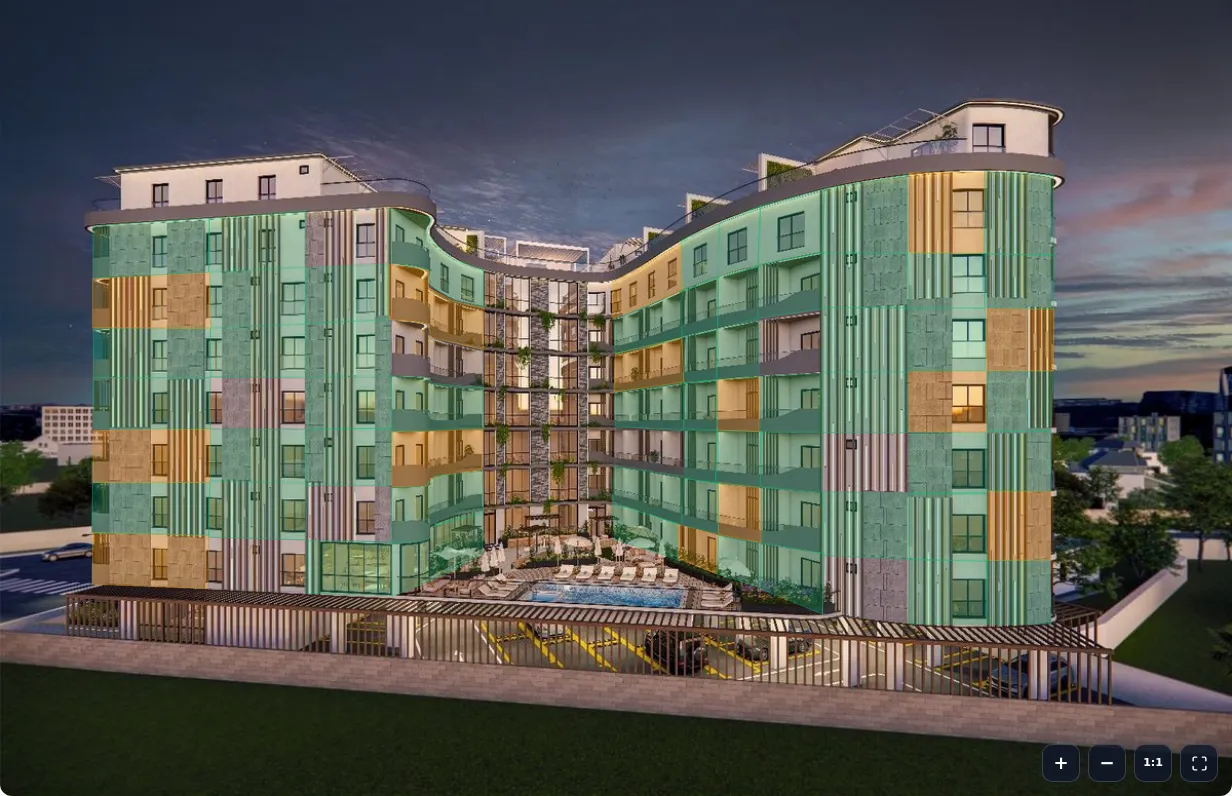 A live Tower Maps demo: each unit is a clickable shape colored by status.
Walking a buyer through the building
The walk-through is where a large screen earns its place. A typical flow in a show suite looks like this:
- Start with the whole building. The buyer sees the tower or the site plan, with every unit colored by status. They can see at a glance how much has sold and where the remaining stock sits.
- Filter to what they want. Tap the filter for available three-bedroom units, or a price range, and the rest of the building falls away. A conversation that would have taken ten minutes with a price list takes a few taps.
- Open a unit. The panel shows the size, price (if you show prices), floor, view and other details, with the floor plan and photo gallery.
- Compare. Go back to the building, open a unit two floors up, and compare the two side by side in the conversation.
The buyer also learns the interface they will later use on their phone while you are there to help. For more on how floor plans fit into this, see interactive floor plans for developers.
Marking a unit Reserved on the spot
This is the part printed boards cannot do.
When a buyer decides and pays a holding deposit, a member of staff opens the dashboard on their own phone or laptop and changes that unit to Reserved. The change shows straight away everywhere the map appears: on the big screen in front of the buyer, on the tablets of the other salespeople in the gallery, on your website and on every link already sent to other buyers. The map itself takes no deposits or payments and doesn’t lock a unit; it shows the status your staff set.
On a busy launch day, two salespeople can be talking to two buyers about the same unit. With everyone on the live map, the second salesperson sees it turn Reserved and moves their buyer on before an awkward conversation.
It also gives the buyer a small, concrete moment: they watch the unit they just committed to change color on the screen.
When a sale completes, the same unit moves to Sold. We go into why this live status matters in real-time unit availability for off-plan sales.
Sending the buyer home with the same link
Most buyers do not decide in the first visit. They go home, talk to a partner or family, look at their finances, and come back to it in the evening.
Instead of handing them a brochure and a price list that will be out of date within days, send them the link to the map before they leave, by WhatsApp, SMS or email. They open it on their phone and see exactly what they saw in the office, including any unit you pointed out. They can share it with a spouse or a relative abroad who was not at the meeting.
Two things follow from that:
- They see live status. If the unit they were thinking about gets reserved by someone else, they will see it change. That is honest urgency; nobody has to tell them it is selling.
- The inquiry names the unit. When they are ready, they tap inquire on the unit they want, and your salesperson knows exactly which conversation to pick up.
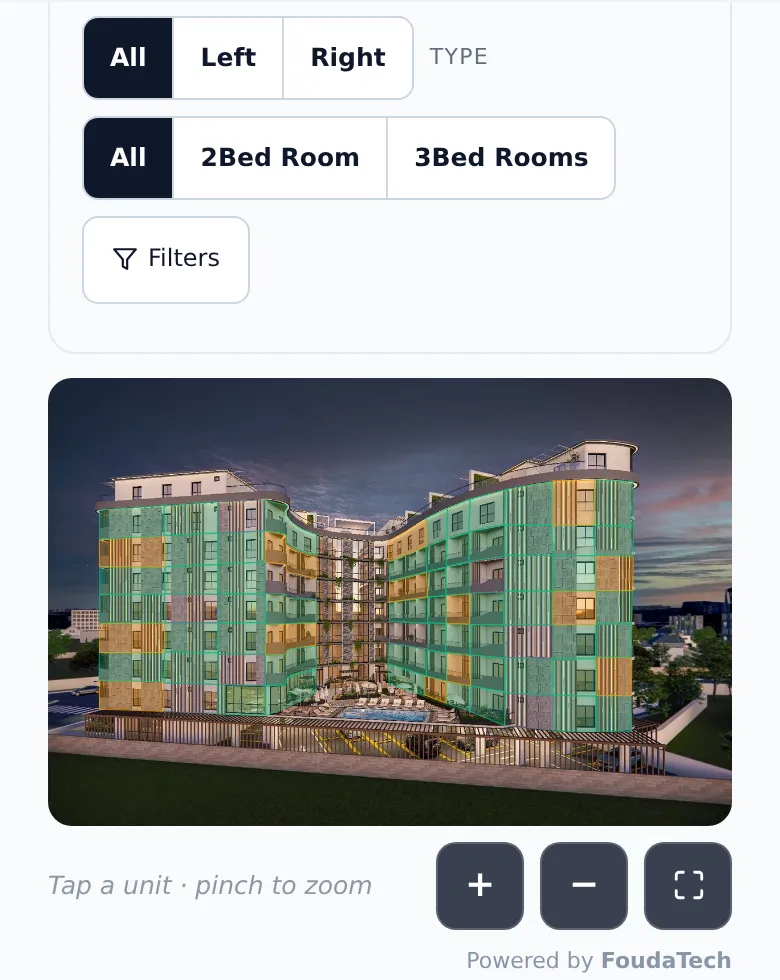 The same map on a phone, with filters by floor, wing and unit type.
Using it at a property expo
Expos and diaspora property shows are short, crowded and noisy, and you have a few minutes with each visitor.
A laptop or tablet connected to a screen at the stand lets you show the whole project without printing large boards for each building. If you have several projects, each one has its own map and you can switch between them. When a visitor is interested, send them the link on the spot, so they leave with the project on their phone instead of a flyer that ends up in a bag.
Check the venue’s connection before the day. Expo Wi-Fi is often shared by hundreds of stands, so a mobile hotspot as backup is sensible. If the connection drops, the map cannot load live status, so plan for that rather than discover it mid-pitch. Selling to buyers abroad is covered in more detail in how to sell off-plan apartments faster.
Printed boards vs a live screen
| Printed boards and price list | Interactive map on a screen | |
|---|---|---|
| Availability | Correct when last updated by hand | Live from the dashboard |
| Matches the website | Only if someone keeps both in sync | Same map, same data |
| Finding a unit | Scan the board, flip the binder | Filter and tap |
| Unit detail | Separate floor plan sheets | Floor plan and photos in the unit panel |
| After the visit | Brochure in a bag | Link on the buyer’s phone |
| Reserving a unit | Sticker on the board, later | Staff mark Reserved, everyone sees it |
Keep the model and brochure if you like them; the screen replaces the parts that go out of date.
Practical setup tips
- Give the screen its own browser profile. Keep it logged out of email and social accounts, open the map, and set it to full screen.
- Keep the dashboard off the public screen. Staff update status from their own devices; the display only shows the buyer-facing map.
- Decide who can change status. Agree in advance who marks units Reserved, so two people are not updating the same unit.
- Test the connection on launch day. Have a hotspot ready.
How to get one
The map you put in the sales office is the same one you embed on your website, so there is nothing extra to buy for the screen.
- Send your render and unit data. The tower elevation or site plan you already use, plus a list of units with status, size, price, floor plans and photos. Today prices are shown or hidden across the whole map; a per-unit “on request” option is in development.
- We map every unit as a clickable shape and set up your dashboard.
- You get an embed and a link. Embed it on your website with one script tag, open the link on the sales office screen, and send it to buyers.
The map system is already built and running, so your map can be live in 2–3 days once we have your render, unit list, floor plans and photos. Larger projects take longer, and we’ll tell you up front. Have those ready ahead of a launch or an expo.
Pricing for a condo tower is a setup fee plus an annual subscription (USD):
- Starter: from $1,200 setup + $600/year (one tower, up to about 80 units)
- Growth: $2,000 setup + $900/year (up to about 150 units)
- Premium: from $5,000 setup + $2,000/year (several towers or phases, over 150 units)
The subscription covers hosting, the dashboard, updates, support and edits, so status, prices and releases stay current on every screen.
These are condo tower prices. If you sell homes or lots in a community, a community map starts from $2,000 setup + $600/year for a small community, and larger communities are quoted after a free demo; see community maps.
Try the live demo on a tablet → or request a free demo of your building.
Frequently Asked Questions
Do we need special kiosk software or hardware?
No. The map is a web page, so it runs in a normal browser on a TV, monitor, touchscreen, tablet or laptop. Most browsers have a full-screen mode, which is usually enough for a display.
Does it work offline?
No. It needs an internet connection to load live unit status. Use the office Wi-Fi or a reliable mobile hotspot, and test the connection before a launch or expo.
Can staff mark a unit Reserved during a meeting?
Yes. A staff member changes the unit to Reserved in the dashboard on their own device, and the change shows immediately on the office screen, the website and every shared link. The deposit itself is taken the usual way; the map takes no payments.
Is it the same map as the one on our website?
Yes. One map, one dashboard. The office screen, your website and the link you send buyers all show the same data.
Can buyers use it on a touchscreen?
Yes. The map is built for touch, since most people browse property on phones, so tapping units on a touchscreen display works the same way.
Can we show several projects at an expo?
Yes. Each project has its own map and link, so you can switch between them on the stand and send visitors the one they are interested in.